Creating Organizations
There are two ways to create an Organization. Any Organizations you belong to appear next to your name on your profile:

Create a new Organization
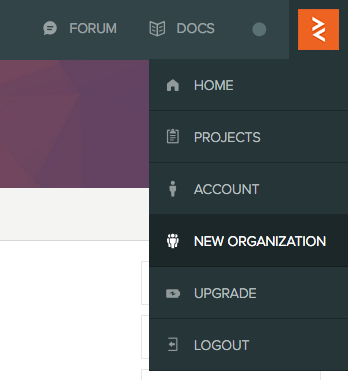
Open the dropdown menu in the top-right corner and click NEW ORGANIZATION:
This opens the following dialog:
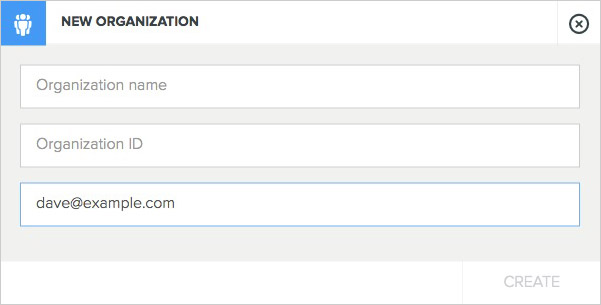
Enter a name for the Organization and an Organization ID (a string containing only alphanumeric characters and dashes). The email address defaults to your own, but you can change it. Click CREATE to finish — you'll be taken to the Organization's profile page.
Transfer existing projects into the Organization
If you already have projects — for example, private projects on a Personal plan — you can move them into the new Organization:
- From your user account, transfer ownership of the projects to the Organization.
- From the Organization account, accept the transfer.
- If you're on a Personal plan, cancel it to downgrade to Free. This takes effect immediately, regardless of when you last paid.
- Add yourself to the projects as an administrator of the Organization.
Your projects are now owned by the Organization, with your user account as an administrator on each.
Convert a user account into an Organization
Alternatively, you can convert an existing user account into an Organization. Click CONVERT on your account settings page:

This opens the following dialog:
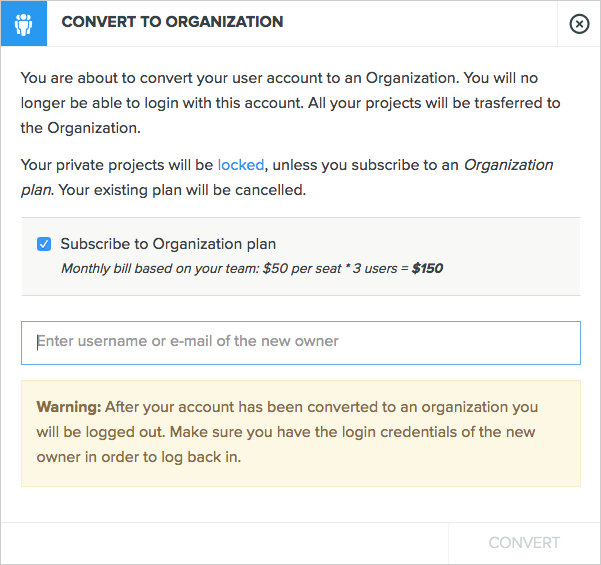
Because you can't log in as an Organization, converting an account means you'll no longer be able to log in with it. You must therefore nominate another user as the new owner.
Make sure you can log in with the new owner's account before you convert.
If the account is on a paid plan, that plan is cancelled unless you choose to subscribe to an Organization plan in the dialog. The number of seats to purchase is calculated automatically from the number of users across your existing private projects.
After converting, you'll be logged out. Log back in with the new owner's account to access the Organization and all its projects.