Managing Organizations
You manage an Organization from its account page. This is where the owner and administrators handle roles, seats, projects, and — if necessary — deleting the Organization.
Roles and permissions
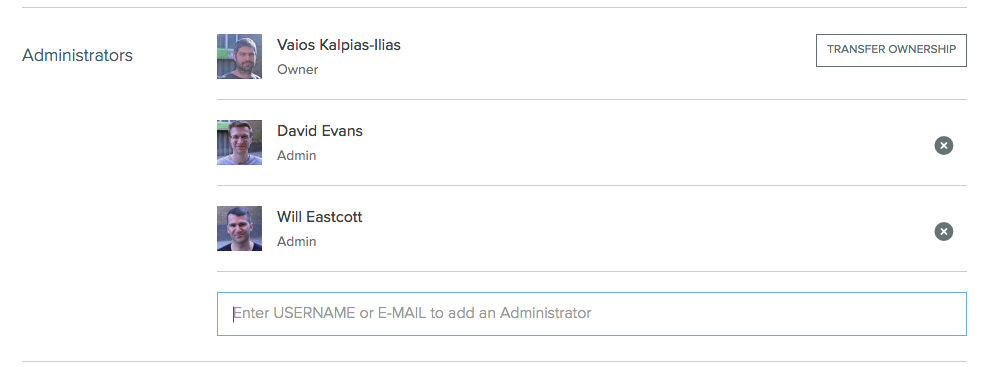
The account page shows the Organization's owner and its administrators. From here, the owner can transfer ownership to another user and add or remove administrators.
Administrators can do everything the owner can — including creating and deleting projects — except delete the Organization itself. Only the owner can do that.
Seats
A seat is consumed when you add a user to one of the Organization's private projects. Public projects don't require seats, so you can have unlimited public collaborators at no cost.

This view lists every user with access to your private projects and the seats they occupy. Removing a user here removes them from all of the Organization's projects and frees up their seat.
The owner doesn't need to occupy a seat if they aren't actively working on projects. We recommend giving a seat to at least one administrator, so that someone can always create and manage projects.
Adding and removing seats

If you're subscribed to the Organization plan, you can increase or decrease the number of seats at any time. Seat changes are prorated on your next billing date — see the worked example in the Billing FAQ.
Projects
Administrators can add themselves to any project the Organization owns. On the account page, click the dropdown arrow to the right of a project and choose Add me as admin:
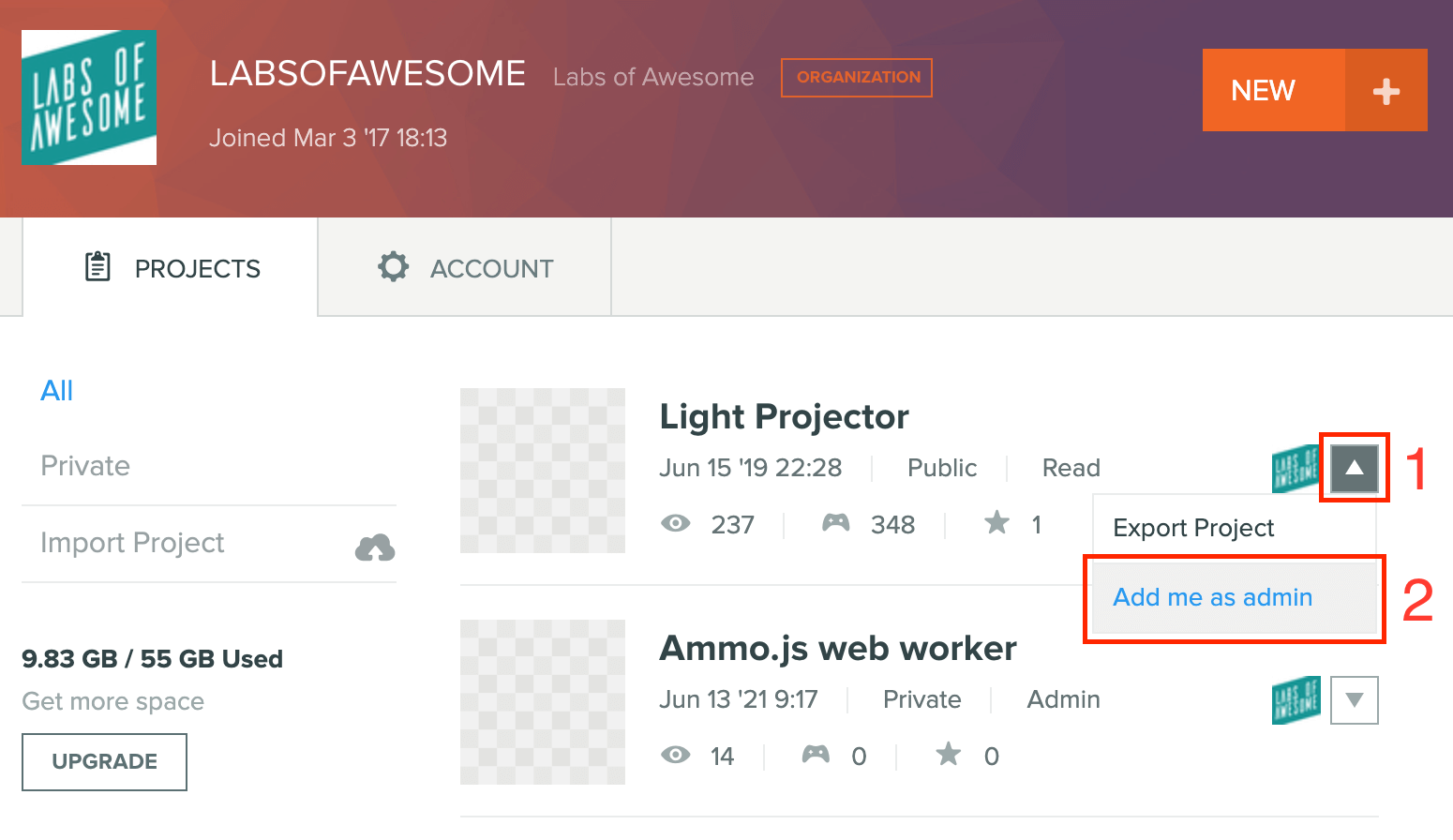
From there, you can add other users to the project as usual.
Deleting an Organization

Only the owner can delete the Organization, from its account page.
Deleting an Organization permanently erases the account and all of its projects. This action cannot be undone.